

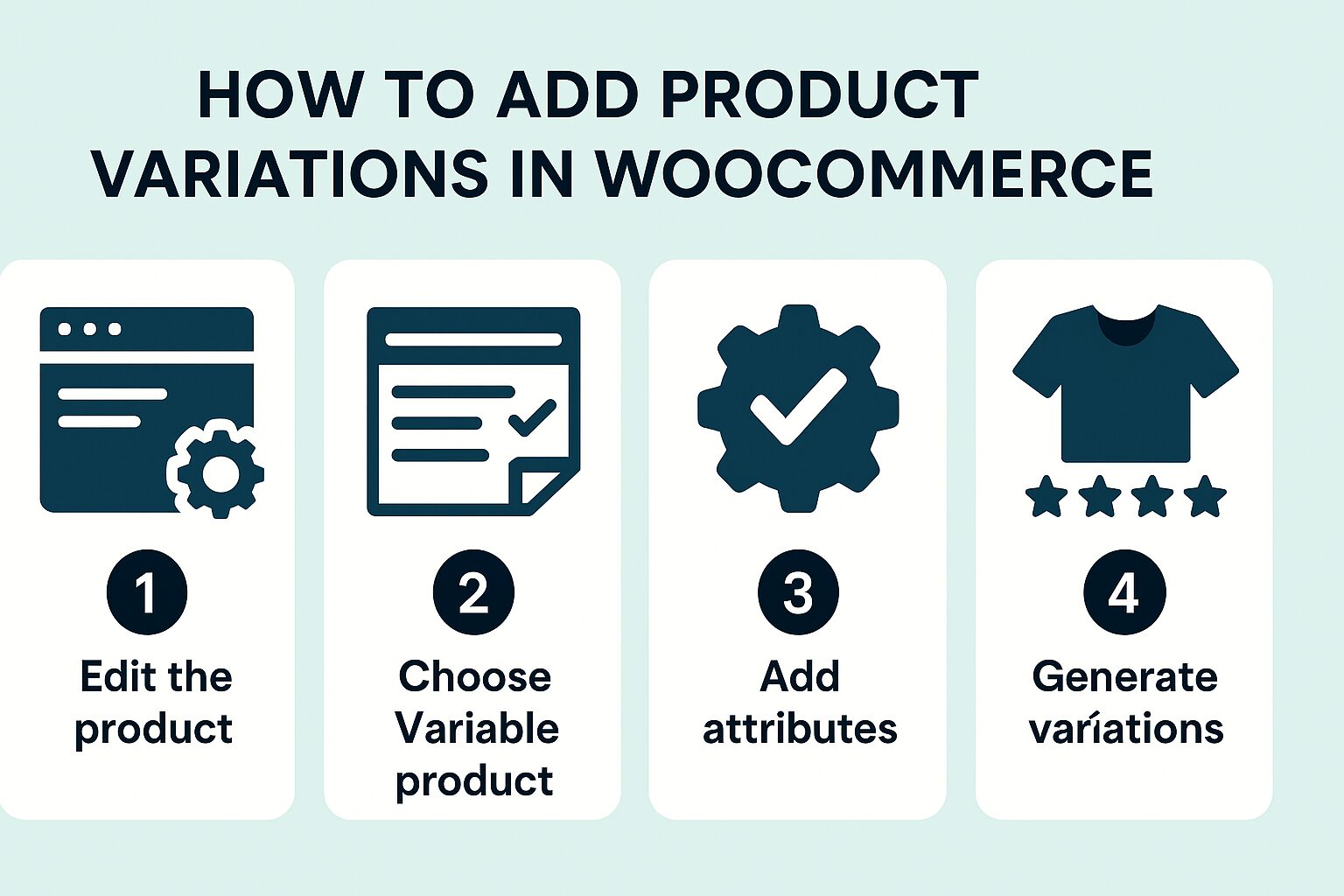
How to Add Product Variations in WooCommerce: A Comprehensive Guide
WooCommerce product variations allow you to offer different versions of the same product, such as different sizes, colors, or materials. This powerful feature helps you manage inventory more efficiently while providing customers with options to customize their purchases. In this detailed guide, we’ll cover everything you need to know about creating and managing product variations in WooCommerce.
If you need further information: https://www.youtube.com/@easythemestore
Understanding Product Variations in WooCommerce
Before diving into the setup process, it’s important to understand what product variations are and when to use them.What Are Product Variations?
Product variations are different versions of a single product that share the same basic attributes but differ in specific characteristics. For example:
- A t-shirt available in Small, Medium, Large (size variations)
- A phone case available in Red, Blue, Black (color variations)
- A coffee blend available in Whole Bean, Ground (grind variations)
When to Use Variations vs. Separate Products
Use variations when:
- The products are fundamentally the same with minor differences
- You want to track inventory for each option separately
- You want customers to easily compare options on one product page
Create separate products when:
- The differences are substantial (completely different products)
- Each version needs its own detailed description and images
- The pricing difference is significant
Setting Up Product Variations: Step-by-Step
1. Create a Variable Product
- Go to Products > Add New in your WordPress dashboard
- Give your product a name and description
- In the Product Data dropdown, select Variable product
2. Create Product Attributes
Attributes are the characteristics that will differentiate your variations (like size, color, etc.).
Method 1: Creating Global Attributes (Recommended for Reuse)
- Go to Products > Attributes
- Click Add New
- Enter the Attribute name (e.g., “Color”)
- Add attribute terms (values) separated by pipes: “Red|Blue|Green”
- Check “Enable archives” if you want a shop page for this attribute
- Click Save attribute
Method 2: Creating Custom Attributes (Product-Specific)
- In the product editor, go to the Attributes tab
- From the dropdown, select Custom product attribute
- Enter the attribute name (e.g., “Size”)
- Enter values separated by pipes: “S|M|L|XL”
- Check “Used for variations”
- Click Save attributes
3. Assign Attributes to Your Variable Product
- In the product editor, go to the Attributes tab
- Select your attribute from the dropdown (for global attributes)
- Check “Used for variations”
- Select all the terms that apply
- Click Save attributes
4. Creating the Variations
Now that you’ve defined the attributes, you can create the actual variations:
- Go to the Variations tab in the product editor
- From the dropdown, choose how to create variations:
- Add variation – Create one at a time
- Create variations from all attributes – Automatically generates all possible combinations
- Link all variations – For advanced use cases
For each variation:
- Set a unique SKU (optional but recommended for inventory management)
- Upload variation-specific images
- Set pricing (can be different for each variation)
- Manage stock if needed
- Set shipping details if they vary
- Add a variation description if needed
Click Save changes
5. Configuring Variation Options
In the Variations tab, you’ll find several important settings:
- Default Form Values: Set which variation is selected by default
- Variation Prices: Display the lowest price or price range
- Threshold for displaying “In Stock”: Set how many must be available to show as in stock
Advanced Variation Techniques
1. Variation Swatches
Instead of dropdowns, you can display variations as:
- Color swatches
- Image swatches
- Buttons
- Radio buttons
To enable swatches:
- Install a plugin like “Variation Swatches for WooCommerce”
- Configure display settings for each attribute
- Set swatch styles (circles, squares, etc.)
2. Conditional Variations
Show/hide variations based on other selections using plugins like:
- WooCommerce Conditional Variations
- Extra Product Options
3. Bulk Editing Variations
For stores with many variations:
- Use the bulk edit options in the Variations tab
- Consider plugins like “Smart Manager” for spreadsheet-style editing
- Use CSV import/export for large-scale changes
4. Variation-Specific Content
- Images: Each variation can have its own image gallery
- Descriptions: Add unique descriptions for each variation
- Downloads: For digital products, assign different files to variations
Troubleshooting Common Variation Issues
1. Variations Not Showing
- Ensure attributes are set to “Used for variations”
- Check that variations are published (not draft)
- Verify that each variation has a price set
2. “Sorry, this product is unavailable” Message
- Check stock status for each variation
- Verify that variations are properly linked to attributes
- Look for plugin conflicts
3. Performance Issues with Many Variations
- Limit the number of variations (WooCommerce handles ~50 well)
- Use lazy loading for variation images
- Consider using a plugin like “WooCommerce Composite Products” for complex options
Best Practices for Product Variations
- Keep It Organized: Use clear, consistent attribute names
- Limit Options: Too many variations can overwhelm customers
- Use High-Quality Images: Show each variation clearly
- Set Defaults Wisely: Choose the most popular option as default
- Monitor Performance: Watch for slow loading with many variations
- Mobile Optimization: Ensure variation selectors work well on mobile
- Inventory Management: Track stock for each variation carefully
Extending Variation Functionality with Plugins
Consider these plugins to enhance variations:
- WooCommerce Extra Product Options: Add custom fields to variations
- Product Variation Swatches: Better visual selection
- WooCommerce Composite Products: Create bundles with variations
- WooCommerce Bulk Variations: Table-style variation display
- WooCommerce Measurement Price Calculator: For products sold by dimensions
Managing Inventory for Variations
Per Variation Stock:
- Enable stock management at variation level
- Set stock quantities for each variation
- Track low stock notifications
Global Stock:
- Manage stock for the parent product
- All variations share the same stock count
Backorders:
- Configure whether to allow backorders per variation
- Set backorder notifications
Pricing Strategies for Variations
- Fixed Price Differences: Each variation has a set price
- Percentage-Based: Variations are a percentage more/less than base price
- Price Prefixes: Show “+10″or”−10″or“−5″ instead of absolute prices
- Sale Prices: Set discounted prices per variation
- Bulk Pricing: Offer quantity discounts for specific variations
Displaying Variations on the Frontend
- Dropdown Selectors: Default WooCommerce behavior
- Radio Buttons: More visible but takes more space
- Swatches: Visual representation of options
- Image Selection: Click on thumbnails to select variations
- Combination Display: Mix of methods for different attributes
SEO Considerations for Variable Products
- Unique Metadata: Search engines see all variations as one product
- Schema Markup: WooCommerce automatically adds product schema
- URL Structure: Variations don’t get unique URLs by default
- Image Alt Tags: Ensure variation images have descriptive alt text
- Page Load Speed: Many variations can impact performance
Advanced: Programmatically Adding Variations
For developers needing to add variations via code:
// Example: Adding a size variation to a product
$product = wc_get_product($product_id);
$attributes = array(
    'pa_size' => array(
        'name' => 'pa_size',
        'value' => '',
        'is_visible' => '1',
        'is_variation' => '1',
        'is_taxonomy' => '1'
    )
);
$product->set_attributes($attributes);
$product->save();

// Create variation
$variation = new WC_Product_Variation();
$variation->set_parent_id($product_id);
$variation->set_attributes(array('pa_size' => 'large'));
$variation->set_regular_price(29.99);
$variation->save();
Conclusion
Mastering WooCommerce product variations can significantly enhance your online store’s functionality and customer experience. By following this comprehensive guide, you’ll be able to create, manage, and optimize product variations effectively. Remember to start simple, monitor performance, and gradually implement advanced features as needed. Properly configured variations can reduce your administrative workload while providing customers with the options they want, ultimately leading to higher conversion rates and customer satisfaction.