

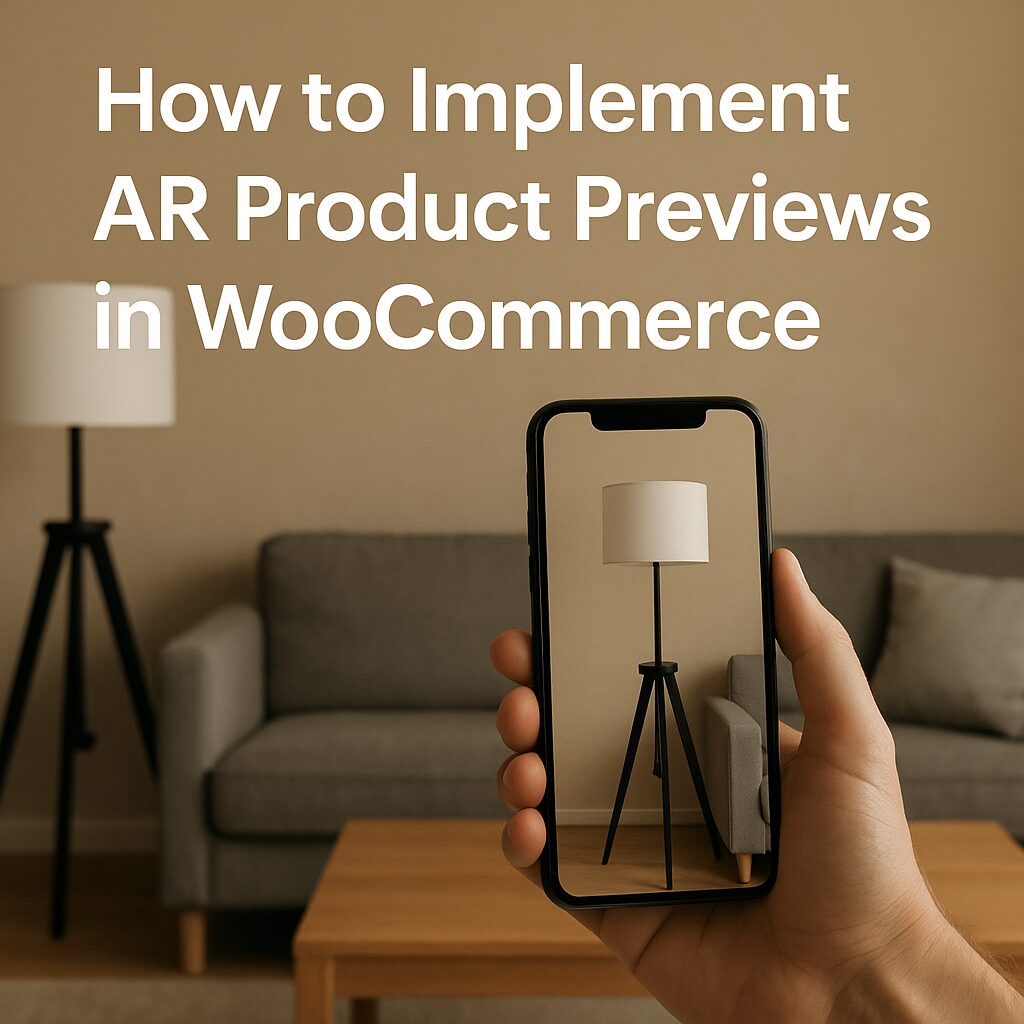
How to Implement AR Product Previews in WooCommerce (2025 Guide)
Augmented Reality (AR) product previews allow customers to visualize products in their real environment before buying—boosting conversions and reducing returns. WooCommerce stores can integrate AR for furniture, fashion, electronics, and more using plugins, 3D modeling, and AR SDKs.
This guide covers 4 methods to add AR product previews to WooCommerce, from no-code solutions to custom development.
Why Add AR to WooCommerce?
📈 17-40% higher conversion rates (Shopify data)
🔄 25% fewer returns (3D/AR reduces mismatched expectations)
📱 Mobile-first shopping experience (60% of users prefer AR)
Best Use Cases for AR in WooCommerce
🛋 Furniture & Home Decor (IKEA Place-style previews)
👗 Fashion & Jewelry (Virtual try-ons)
📱 Electronics (See product scale in your room)
🎨 Custom Art & Wall Decor (Preview paintings on your wall). Our YouTube channel; https://www.youtube.com/@easythemestore
Method 1: AR Plugins for WooCommerce (No Coding)
1. WooCommerce AR Viewer (AR for WooCommerce)
Features:
WebAR (no app needed)
Supports USDZ (iOS) + GLB (Android) models
Works with Product Gallery
Setup:
- Install the plugin.
- Upload 3D models (GLB/USDZ) to products.
- Enable “AR View” button in gallery.
2. Threekit AR (Premium)
Features:
Photorealistic 3D configurator + AR
API integration for dynamic product customization
Pricing: Custom (Enterprise-tier)
Method 2: 3D Model Hosting + AR Quick Look (For Developers)
Step 1: Prepare 3D Models
Use Blender or Adobe Substance 3D to create:
GLB (Universal format)
USDZ (Apple AR Quick Look)
Step 2: Host Models on AWS/S3
# Example AWS S3 structure
s3://your-bucket/ar-models/
  ├── product-1.glb
  ├── product-1.usdz
Step 3: Add AR Button to WooCommerce
// Add AR button to product pages (functions.php)
add_action('woocommerce_after_add_to_cart_button', 'add_ar_button');
function add_ar_button() {
    global $product;
    $model_url = get_post_meta($product->get_id(), 'ar_model_url', true);
    if ($model_url) {
        echo '<a href="' . $model_url . '" rel="ar" class="button">View in AR</a>';
    }
}
CSS for iOS/Android detection:
a[rel="ar"] {
    display: none;
}
/* Show only on AR-capable devices */
@supports (webkit-overflow-scrolling: touch) {
    a[rel="ar"] { display: inline-block; }
}
Method 3: WebAR SDK Integration (8th Wall, Zappar)
1. 8th Wall (Web-Based AR)
How it works:
Create AR experience in 8th Wall Console.
Embed via iframe or JavaScript.
Code Example:
<script src="https://apps.8thwall.com/xrweb.js"></script>
<button onclick="XrWeb('YOUR_PROJECT_ID')">Launch AR</button>
2. Zappar (Instant WebAR)
- Best for: QR code-triggered AR
- Integration:
// Load Zappar script
wp_enqueue_script('zappar', 'https://libs.zappar.com/zappar-js/1.2.0/zappar.js');
Method 4: Custom AR App + WooCommerce API
For high-end brands (e.g., Nike, Sephora-style apps):
- Develop a mobile app (Unity/ARKit/ARCore).
- Connect to WooCommerce via REST API:
fetch('https://yourstore.com/wp-json/wc/v3/products/123')
  .then(response => response.json())
  .then(data => loadARModel(data.meta.ar_model));
Optimizing AR for WooCommerce
1. 3D Model Best Practices
- Polycount: Keep under 100k polygons for mobile.
- Textures: Use 4096×4096 PBR materials.
- File Size: Compress GLB with Draco (3D PNG).
2. Performance Tips
- Lazy-load AR assets
- Use CDN (Cloudflare R2 for 3D models)
3. Tracking Metrics
Google Analytics 4 Events:
ar_view_startar_purchase_conversion
Top WooCommerce AR Plugins Compared
| Plugin | Price | WebAR | Mobile AR | 3D Configurator |
|---|---|---|---|---|
| AR for WooCommerce | Free | ✅ | ✅ | ❌ |
| Threekit | $10k+/yr | ✅ | ✅ | ✅ |
| 8th Wall | $999+/mo | ✅ | ✅ | Custom |
| Zappar | $299+/mo | ✅ | ✅ | ❌ |
Final Thoughts: AR is the Future of E-Commerce
Start simple with a free plugin (Method 1), then scale to WebAR SDKs (Method 3) for advanced experiences. For luxury brands, a custom AR app (Method 4) delivers the best ROI.
🚀 Pro Tip: Test AR on best-selling products first—furniture and eyewear see the highest AR conversion lifts!
🔧 Need help? Hire a WooCommerce 3D/AR developer on Codeable or Toptal.